Appearance
Ticket Collections
A ticket collection is a group of ticket options that are displayed together in the front-end booking flow. This helps present related tickets in a clear and organised way for Lead Bookers. Each ticket option can be assigned to one collection.
Collections can also be nested, up to two levels deep:
- Parent collection
- Child collection
- Grandchild collection (Maximum nesting)
- Child collection
Why Use Ticket Collections?
One use-case for this new feature could be 'Day Tickets'. An event may offer specific one-day tickets and wish for them to be displayed separate to the main week-long event tickets.
In this case, an Organisation Admin could create a 'Day Tickets' collection and move the one-day ticket options into this collection.
A further sub-collection for 'Tuesday' could be created, as an example, if you wished to have ticket broken down by day. This 'Tuesday' collection could then be added to the 'Day Tickets' parent collection to be nested within it.
Example of the collection structure:
Day Tickets
|
-> Tuesday
   |
   -> Adult Day Ticket
   -> Child Day Ticket
Ticket collections can contain both their child collections and also tickets themselves, such as:
Early Bird Tickets                  (Parent Collection)
|
-> Early Bird Week Ticket           (Ticket option directly in parent collection)
|
-> Day Tickets                      (Child Collection)
   |
   -> Early Bird Adult Day Ticket
   -> Early Bird Child (3-11) Day Ticket
Assigning Tickets to Collections
To assign a ticket to a specific collection, there are two methods you can use:
Drag and Drop
On the Ticket Collections page, you can drag and drop ticket options directly into the desired collection. This provides a visual way to organise your tickets.
Child collections can be added by dragging a collection into another collection. Tickets within a parent collection will appear above any child collections.
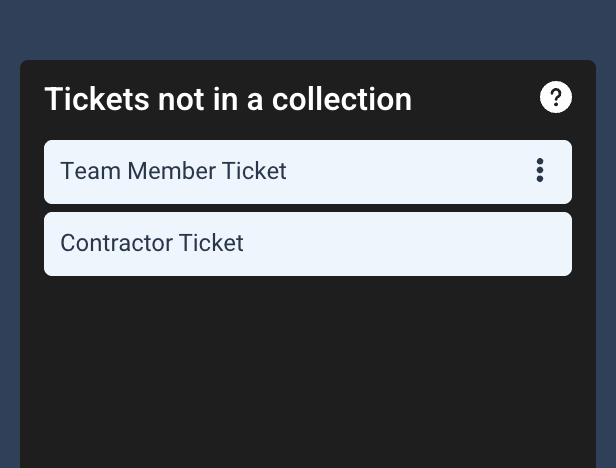
There will always be a 'Tickets not in a collection' area on the left, where any unassigned tickets will be listed. To remove a ticket from a collection, simply drag it back into this area, or directly to another collection.
Using the Ticket Option Edit Page
When editing a ticket option, there is now a 'Ticket Collection' dropdown field. To change the collection here, simply select the desired collection from the dropdown and save your changes.
Ordering Ticket Collections
Prior to ticket collections, the order for the ticket options was determined by the order set in the back-end 'Ticket Options' list. With this new collections update, re-ordering is done on the Ticket Collections page.
The Ticket Options list will however remain as the base for other actions such as creating, updating and deleting ticket options.
To reorder the parent collections, simply drag and drop them into the desired order on the Ticket Collections page, from left to right. A number will appear in the top left of a parent collection to indicate its position in the front-end order. The higher the number, the further down the front-end list it will appear.
 In this example, the 'Week Tickets' collection would appear above the 'Day Tickets' collection on the front-end Tickets page.
Capacity Management with Ticket Collections
Each ticket collection can have its own capacity limit set. This is not a requirement, but can be useful for managing overall availability for a group of tickets. This capacity will be displayed underneath the collection name.
For a parent capacity, the ticket count listed will include child collections. If no capacity is set for a collection, it will simply show the total number of tickets sold within that collection.